
COM Port Widget: a free tool to find a USB device's COM port and clear COM ports in use
COM Port Widget shows which COM port the USB serial device you just plugged in is on, and lets you pick and clean up the COM number reservations and records held by devices that are no longer connected. It is a free, open-source (MIT) widget for Windows.
Why COM port numbers climb to COM200 or COM300
A PC used for firmware work piles up COM ports quickly. When you plug in a new board it is hard to tell which number just appeared, and the numbers can climb to COM200 or COM300.
Windows keeps the record and the COM number reservation of a device you have connected before, even after you unplug it. As devices are plugged and unplugged over and over, these records and reservations accumulate, and a new device gets a higher number that is still free.
COM Port Widget is a small window that lists COM ports with the most recently recognised one first and highlights the port that was just connected. It also has a function to clean up the records and reserved numbers of devices that are not connected.
What it does
Gathers the connected COM ports in one window and lets you pick which accumulated records to clean up.
Ctrl+Alt+Shift+C), always on top, and start with Windows. The UI is in Korean and English and follows the Windows display language by default.Windows Device Manager and COM Port Widget
Windows Device Manager also shows COM numbers, under "Ports (COM & LPT)". The two show different things, as listed below.
| Item | Windows Device Manager | COM Port Widget |
|---|---|---|
| Installation | Included with Windows | Unzip the release and run the exe. No installer |
| COM port list | Device name and COM number under "Ports (COM & LPT)" | Cards, newest first. Shows number, note, vendor, device description and recognition time |
| Marking the device just plugged in | No marking | A port recognised in the last 5 minutes is shown in green with NEW |
| Device notes | No notes | A note per device. It stays when the device is plugged into another USB port and is still recognised as the same device |
| Devices that are not connected | Listed only after "Show hidden devices" is turned on in the View menu | Shown in the "Not connected" group |
| COM numbers reserved with no device record | Not listed | Can be selected in the cleanup window and released |
How to find a COM port and clear the ones in use
Unzip the download and run ComPortWidget.exe. There is no installer. Windows 10 1903 and later include .NET Framework 4.8, so nothing needs to be installed.
- 01
Download ComPortWidget-<version>-win64.zip from GitHub Releases and unzip it
The zip contains a folder
ComPortWidget-<version>holdingComPortWidget.exe,LICENSE,NOTICE.md,NOTICE.en.mdandTHIRD_PARTY_NOTICES.md. Keep that folder to itself instead of a shared folder such as Downloads. The release also carriesSHA256SUMS.txt. - 02
Run ComPortWidget.exe
On the first run it asks whether to start with Windows. You can change this later in the settings. Closing the window leaves it in the tray, and you quit from "Exit" in the tray menu.
- 03
Find the COM port of the device you just plugged in
The most recently recognised port is at the top, and a port recognised in the last 5 minutes is marked with a green NEW tag. Unplugged devices are in the collapsed "Not connected" group. Right-click an item to copy the port name, edit the note or see device information.
- 04
Add a note to the device
Click the note line and type a name you will recognise, such as "RS485 converter". Saved notes can be deleted from the note list in the settings window.
- 05
Start the cleanup from the "Clean up COM ports…" button in the settings window or from the tray menu
After you pick the items, the window shows the items to be removed, their notes, last recognition time and the expected result ("N records removed, M numbers released") and asks once more. A UAC prompt follows, and you should not plug or unplug devices while the cleanup runs. This function works on Windows 10 version 2004 or later.
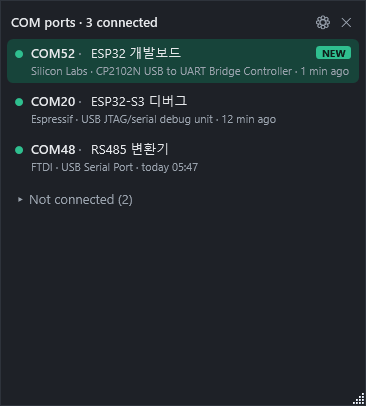
The screen is in --demo mode. The devices and notes are all made-up demo data, and the Korean note text is part of that demo data. This mode writes no files and does not query real devices.
What COM port cleanup removes
It removes the device records and COM number reservations of USB serial records that are not connected (USB, FTDIBUS). Items removed only when you select them are the not-connected record with the same key as a connected device, records of virtual and Bluetooth ports that are not connected, and numbers left reserved with no record (only the reservation is released). Only the not-connected USB serial records are selected by default.
Connected devices are not listed and are never touched. Just before each item is removed, the connection is checked again, and if a connected device is found the whole remaining batch stops. Items already removed before that point are not restored. Driver files, notes and recognition history are not removed either.
When you plug a device back in after its record was removed, Windows creates a new record and gives it a free number. There is no guarantee it gets the same number as before. A removed record cannot be restored. Before running, the original ComDB and the targets are saved to %APPDATA%\ComPortWidget\backup-<time>.json, but this is for investigation and the app has no undo.
Whether a program or setting that used a number about to be released is affected (a terminal program port setting, a COM number written in a script, and so on) is for you to judge, and the user is responsible for the result of the cleanup. The limits that remain, such as a record being removed if the same device is plugged in between the last connection check and the removal call, are listed in NOTICE.en.md in the repository.
Frequently asked questions
Which Windows versions does it run on?
Windows 10 version 1903 or later, 64-bit. .NET Framework 4.8 is part of Windows from that version on, so there is nothing to install. The COM port cleanup needs Windows 10 version 2004 or later, because pnputil /remove-device, which it uses to remove device records, exists from that version.
Why does SmartScreen show a warning on the first run?
The executable has no code signature. A "Windows protected your PC" warning may appear, and you can choose "More info" and then "Run anyway". The values in SHA256SUMS.txt, published with the release, can be compared with the output of PowerShell's Get-FileHash to check the downloaded file.
Why does the UAC prompt show "Unknown publisher" during cleanup?
Removing device records needs administrator rights, and the widget itself runs with normal rights. When you run a cleanup, the widget starts the same ComPortWidget.exe again in a cleanup-only mode and elevates it through UAC. The exe has no code signature, so the UAC prompt shows ComPortWidget.exe with "Unknown publisher". The cleanup-only mode creates no window, validates the plan file again, processes only the items you selected and loads system DLLs only from System32.
Why keep the exe in a folder of its own?
It does not open COM ports. Device information is read from the registry and the device management APIs, so it does not affect a port that a terminal program, a flasher or a debugger is using.
Does it use the network or send data anywhere?
It does not use the network. There is no telemetry, update check or error reporting. Notes, the connect and disconnect times it observed, and settings are stored in %APPDATA%\ComPortWidget\data.json. If an unhandled error occurs it is written to crash.log in the same folder and is not sent anywhere. If the program crashes, Windows Error Reporting may send a report to Microsoft depending on your Windows settings.
Do notes follow the device?
A note is attached to the device key. When a USB device reports a unique serial, the same key is recognised after the COM number changes or the device is plugged into another USB port or hub, so the note stays. Notes also stay after a cleanup removes the Windows records. A device without a serial keeps its note only on the same USB port. Default serials known to be shared by many products are treated as having no serial.
Is the company name in the vendor column the maker of the device?
The vendor column shows the USB chip maker that matches the VID (vendor ID) the USB device reports. It can differ from the company that made the device. For example, a home-made board using a CP2102N chip is shown as Silicon Labs, and a converter using an FTDI chip is shown as FTDI. A VID that is not in the built-in table is shown as a number, such as VID 1234.
Can I use it commercially?
Yes. COM Port Widget is MIT-licensed open source. Personal and commercial use are both free, and modifying or redistributing the source is allowed within the license terms. The release exe contains no third-party code or Microsoft components; it uses the .NET Framework 4.8 that is part of Windows.
Is the source code public?
Yes. The full source is public on GitHub under the MIT license. You can build it yourself with the .NET SDK and the .NET Framework 4.8 developer pack, and a prebuilt Windows executable is provided in the release zip.
Download
The latest release and the source code are on the GitHub repository. The release zip (about 98 KiB) holds ComPortWidget.exe (about 210 KiB) for 64-bit Windows, and SHA256SUMS.txt is published with it.
COM Port Widget is not affiliated with, sponsored by or endorsed by the companies or products below, and their names appear only to describe devices. The vendor names in the list are the chip makers that match the VID (vendor ID) a USB device reports, and can differ from the company that actually made the device. FTDI is a trademark of Future Technology Devices International Ltd. Silicon Labs is a trademark of Silicon Laboratories Inc. Espressif is a trademark of Espressif Systems. WCH is a trademark of Nanjing Qinheng Microelectronics Co., Ltd. Adafruit is a trademark of Adafruit Industries. STMicroelectronics is a trademark of STMicroelectronics. Prolific is a trademark of Prolific Technology Inc. Arduino is a trademark of Arduino S.r.l. SEGGER is a trademark of SEGGER Microcontroller GmbH. Arm is a trademark of Arm Limited. Microsoft, Windows and .NET Framework are trademarks of Microsoft Corporation. Other names are trademarks of their respective owners. This software is provided as is, without warranty of any kind.
About Nerdvana
Nerdvana Inc. is a Seoul-based embedded hardware, firmware, and software development company, founded in 2015 and incorporated in 2018. We work on circuit and PCB design, firmware, and application software.
We publish some of the tools we build during development as open source, and we also work on AI-assisted embedded development and debugging. If you need embedded hardware or firmware development, contact us.